Quickstart
From installed to collecting reviews in about five minutes. You need a Shopify store on an Online Store 2.0 theme, such as Dawn.
1. Install the app
- Install Sofcy Reviews from the Shopify App Store and approve the permissions it asks for.
- Shopify opens the app on its Home page. You can come back any time from Apps › Sofcy Reviews in your Shopify admin.
You start on the Forever Free plan. Nothing is charged unless you choose Awesome.
2. Turn on the app embed
The app embed loads Sofcy on your storefront. Review-request links and order tracking depend on it.
- On Home, find Enable Sofcy on your store in the Setup guide and click Enable app embed. The theme editor opens on App embeds with Sofcy Reviews switched on.
- Click Save.
Sofcy has four app embeds. Only Sofcy Reviews is needed to start. More in Sofcy Reviews app embed.
3. Add the review widget and star badge
- Back on Home, find Enable Reviews Widget and click the Enable Reviews Widget button. The theme editor opens your product template with the Review widget block added to the main product section.
- Drag it where you want it, usually below the product description, and click Save.
- Click Install Star Rating Badge in the same task. Drag the Star rating badge just under the product title and click Save.
To add blocks yourself instead: in the theme editor, open a product page, click Add block in the product information section, open the Apps tab and pick the block.
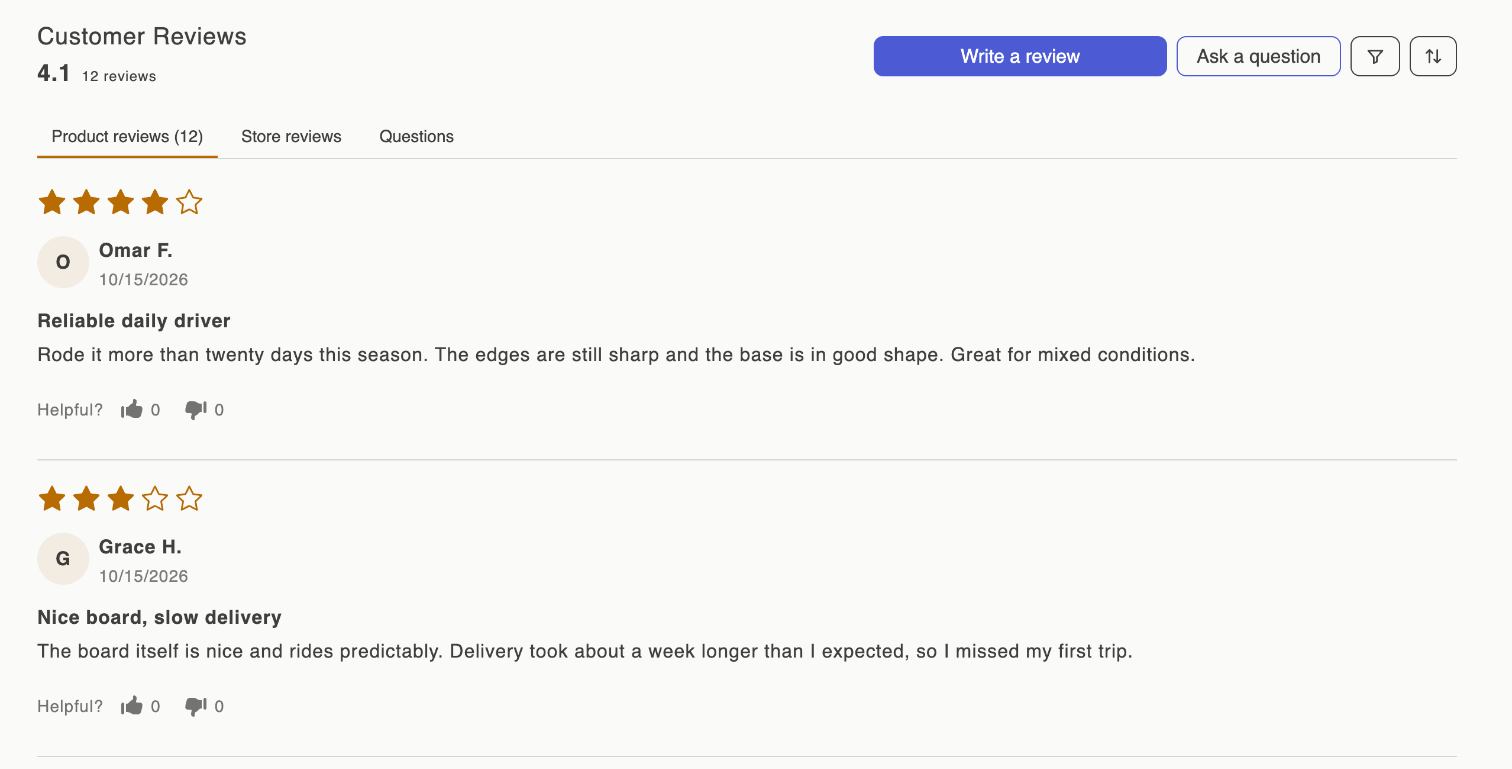
Open any product page on your store. You should see the star badge under the title and the review widget, with Write a review and Ask a question buttons. The setup guide ticks each task off when it finds the block on your published theme.
4. Try it as a shopper
- On a product page, click Write a review.
- Pick a star rating, write your review, enter an email and display name, optionally add a photo, and submit.
- In the app, open Reviews. Your review is there.
New reviews wait for your approval until you turn on auto-publish. Change the status to Published and reload the product page to see it. See Moderation and auto-publish.
5. Turn on review requests
Most reviews come from a short email sent after the order arrives. Sofcy sends one automatically after fulfillment, with optional reminders.
- Go to Settings › Request scheduling and check the delay. The default is 14 days after fulfillment.
- Go to Settings › Email templates, click Edit on Review request, and make sure Send review request emails is on. It is on by default.
- Optionally send yourself a sample with Send sample email.
See Review request emails and Scheduling and reminders.
Next steps
- Already have reviews in another app? Import them.
- Add a carousel to your home page. See Widgets overview.
- Set your logo and brand colour for emails in Sender and branding.