Widgets overview
Sofcy shows reviews on your store through theme blocks and app embeds. You add them in the Shopify theme editor, and style some of them in the app.
Blocks and app embeds
- Blocks go in one place on one template, such as the product page or home page. You add them with Add block or Add section in the theme editor, under the Apps tab, and drag them into position.
- App embeds run on every page and have no position of their own. You switch them on under App embeds in the theme editor.
Start with the Sofcy Reviews app embed. Then add whatever else you want.
The widget gallery
In the app, Settings › Widgets lists every widget with a preview.
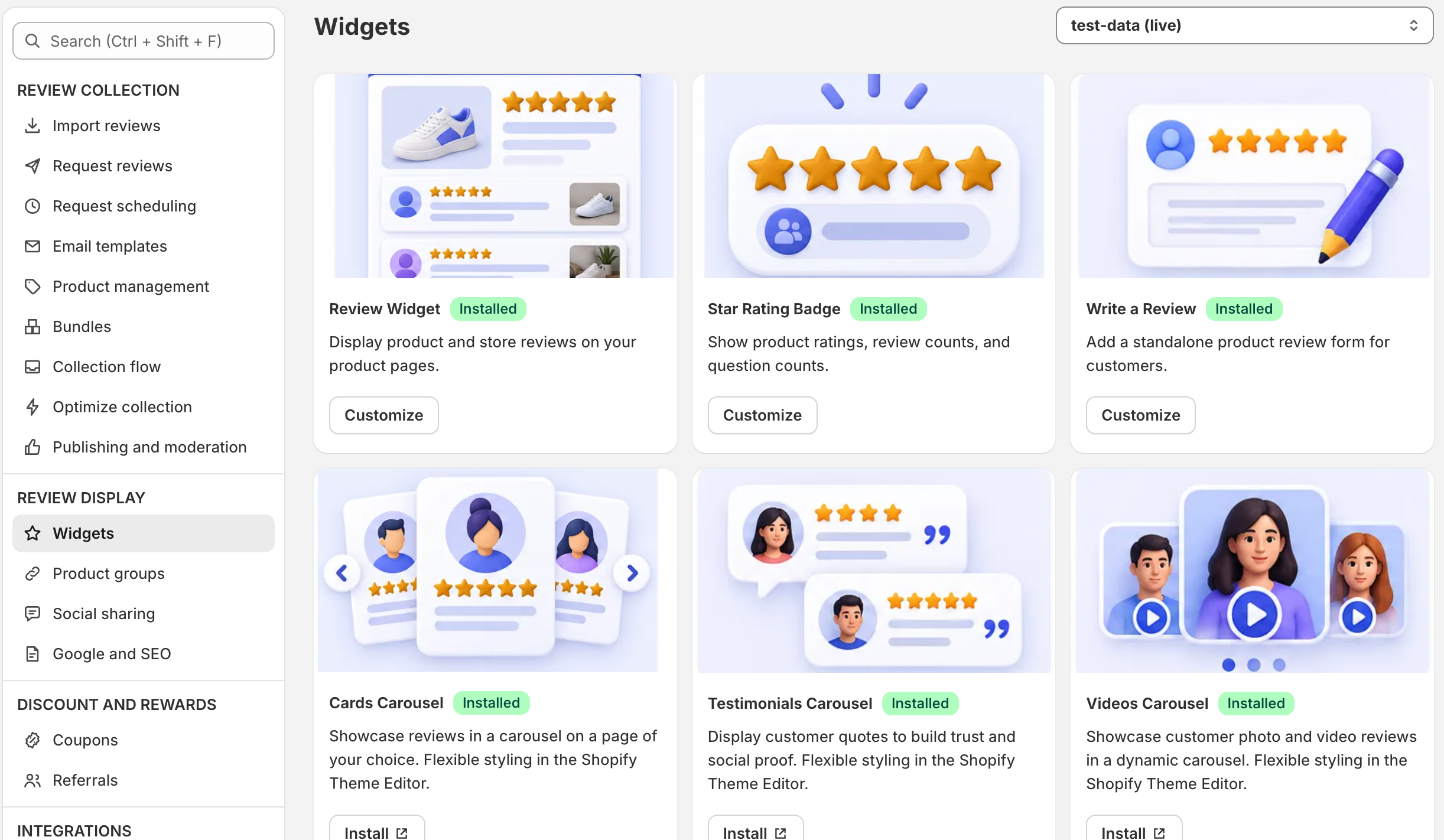
- Pick the theme to work on from the Theme menu at the top. Your live theme is marked (live).
- Install opens the theme editor with the block already added to the right template. Drag it where you want it and click Save.
- Customize opens the widget's settings in the app, with a live preview on sample data, for desktop and mobile.
- An Installed badge appears once Sofcy finds the block on that theme. The pop-up, the floating tab and Questions and Answers never show this badge.
Where each widget goes
| Widget | Type | Usual place | Styled in |
|---|---|---|---|
| Review widget | Block | Product page | App and theme editor |
| Star rating badge | Block | Product page, under the title | App and theme editor |
| Write a review | Block | Product page or any page | App and theme editor |
| Review snippets | Block | Product page, near the buy button | Theme editor |
| Review insights summary | Block | Product page | Theme editor |
| Product FAQs | Block | Product page | Theme editor |
| Cards carousel | Block | Home page | Theme editor |
| Testimonials carousel | Block | Home or landing page | Theme editor |
| Videos carousel | Block | Home or product page | Theme editor |
| Classic carousel | Block | Home or product page | App |
| Reviews grid | Block | Home or reviews page | Theme editor |
| All reviews page | Block | A page of its own | App |
| Store FAQs | Block | FAQ or home page | Theme editor |
| All reviews counter | Block | Home page, header or footer area | App |
| Verified reviews counter | Block | Home or product page | App |
| Medals and trust badge | Block | Product page | App |
| Floating reviews tab | App embed | Every page | App |
| Pop-up reviews | App embed | Home, product, collection and cart pages | App |
| Reviews in cart drawer | App embed | Cart drawer or cart page | Nothing to set |
App settings or theme editor?
For widgets with a Customize page in the app, the app's settings take over from the block's theme editor settings once you save them. Until then, the theme editor settings apply. Each customizer says which one is in use, and Use Theme Editor settings switches back.
A few things always stay in the theme editor, such as a block's fallback product or the floating tab's position. The customizer links to them.
Star colour
One star colour runs across all widgets: the Star and bar chart color in the Review Widget customizer. Blocks with their own Star color setting use it only while that setting is left at its default.
Widgets show published reviews only. A widget with nothing to show either shows an empty state or hides itself, depending on the widget.