Home and setup guide
Home is the first page you see when you open Sofcy Reviews. It walks you through setup, then becomes a quick read of how reviews are going.
Setup guide
Five tasks, with a counter such as 3 of 5 tasks complete. Each has a button that takes you straight to the right place.
| Task | Button | Done when |
|---|---|---|
| Enable Sofcy on your store | Enable app embed opens the theme editor's App embeds with Sofcy Reviews switched on. Click Save there. | The Sofcy Reviews app embed is on in your published theme. |
| Enable Reviews Widget | Enable Reviews Widget adds the Review widget to your product template. Install Star Rating Badge adds the star badge. | The Review widget is on your published theme. |
| Customize the review widget | Customize widget opens Settings › Widgets › Review Widget. | You have saved the Widgets settings once. |
| Add store logo and check email styling | Add store logo opens Settings › Branding. | You have saved Branding or Email templates. |
| Import your existing reviews | Import reviews opens Settings › Import reviews. | At least one imported review exists. |
For the first two tasks the guide reads your published theme and shows Enabled on the published theme, Not enabled on the published theme, or Unable to verify this block on the published theme right now. The last one usually clears on a reload.
Finished, or not interested? Use the ⋯ menu and choose Dismiss setup guide. To bring it back, click the Tasks status card.
Welcome metrics
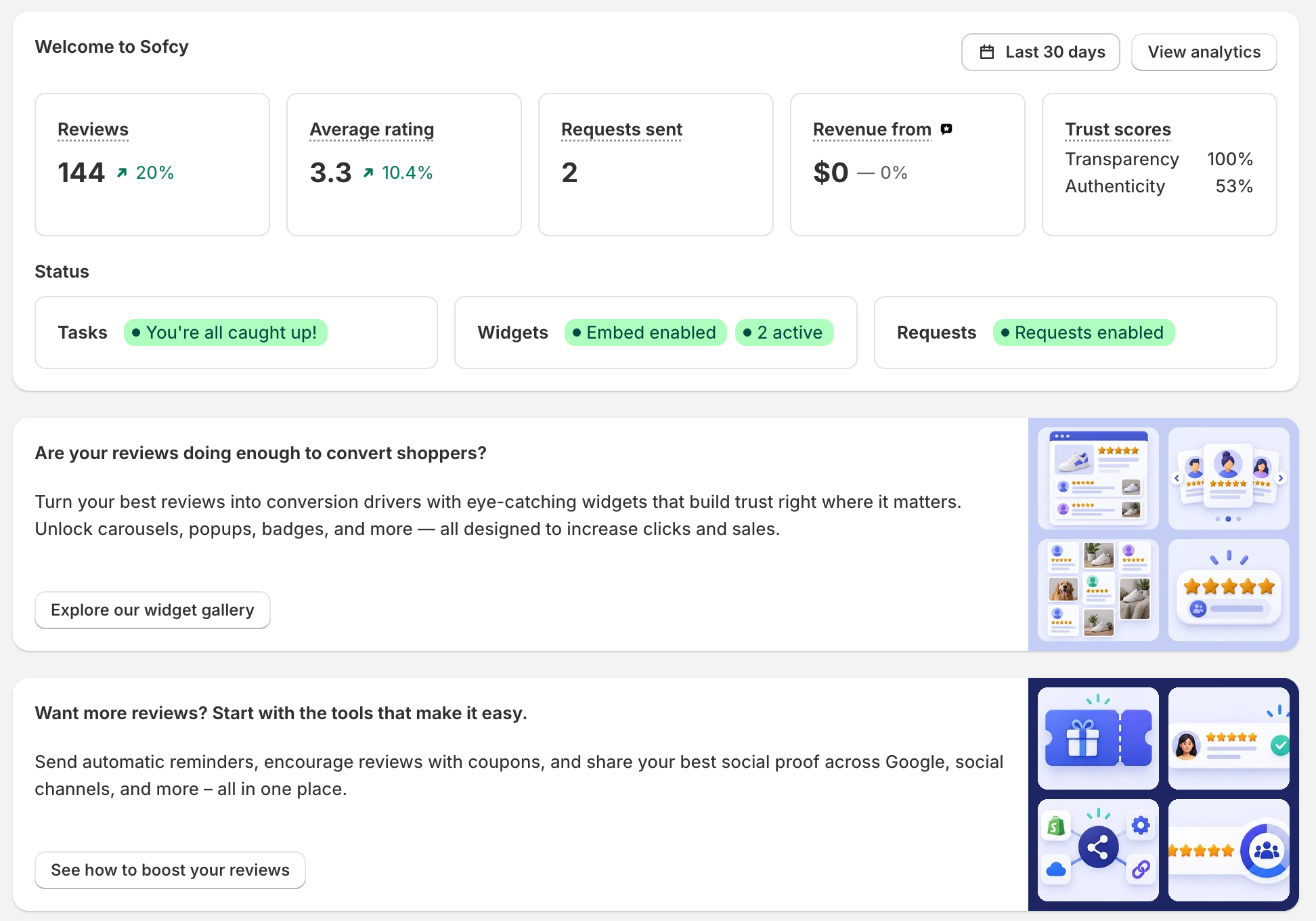
Pick a period with the date button (default Last 30 days). Each figure shows the change against the period before it of the same length.
| Tile | What it counts |
|---|---|
| Reviews | Reviews created in the period, whatever their status. |
| Average rating | The average of published reviews, to two decimals. |
| Requests sent | Review request emails sent in the period. |
| Revenue from Sofcy | Revenue from orders placed after a review-request link. See Analytics › Revenue. |
| Trust scores | Transparency: the share of verified reviews you published. Authenticity: the share of your published reviews that are verified. |
View analytics opens the full Analytics page.
Status cards
- Tasks: You're all caught up! or how many setup tasks are left.
- Widgets: whether the app embed is enabled, and how many of the Review widget and Star rating badge are active.
- Requests: Requests enabled or Requests disabled, following the Review request email switch in Email templates.
Top products and recent activity
- Top products lists up to six products with the most published reviews in the period, with their rating. Click one to see its reviews.
- Recent activity has two tabs, Last reviews and Last questions, with the six newest of each. View all in Reviews Dashboard opens the Reviews page.
Notifications
The bell at the top of Home lists what needs you: reviews waiting for moderation, questions without answers, and review requests that failed to send. Each one links to the right view. Email alerts are set in Admin notifications.
Your plan
The badge at the top shows Free Plan, Awesome Trial or Awesome Plan. Click it to open Settings › Plan. See Plans and billing.